Ext:asp Intitle:cart Explained: What It Means and How Site Owners Can Protect Cart Pages
If you have seen the query ext:asp intitle:cart in a search report, a forum thread, or a list of search terms, you may have wondered what it is really asking for — and whether it means your own store is at risk.
The short version is reassuring, but it comes with a useful warning. This is not a website, a tool, or a hack. It is a combination of two Google search filters. And if your own cart or checkout pages are showing up in search results, that is usually a sign to fix your indexing settings, not a sign that someone has broken into your site.
This guide explains what each part of the query means, why people use it, what it can and cannot show, and — most importantly — how you can check your own site and protect your cart pages the right way.
The Short Answer
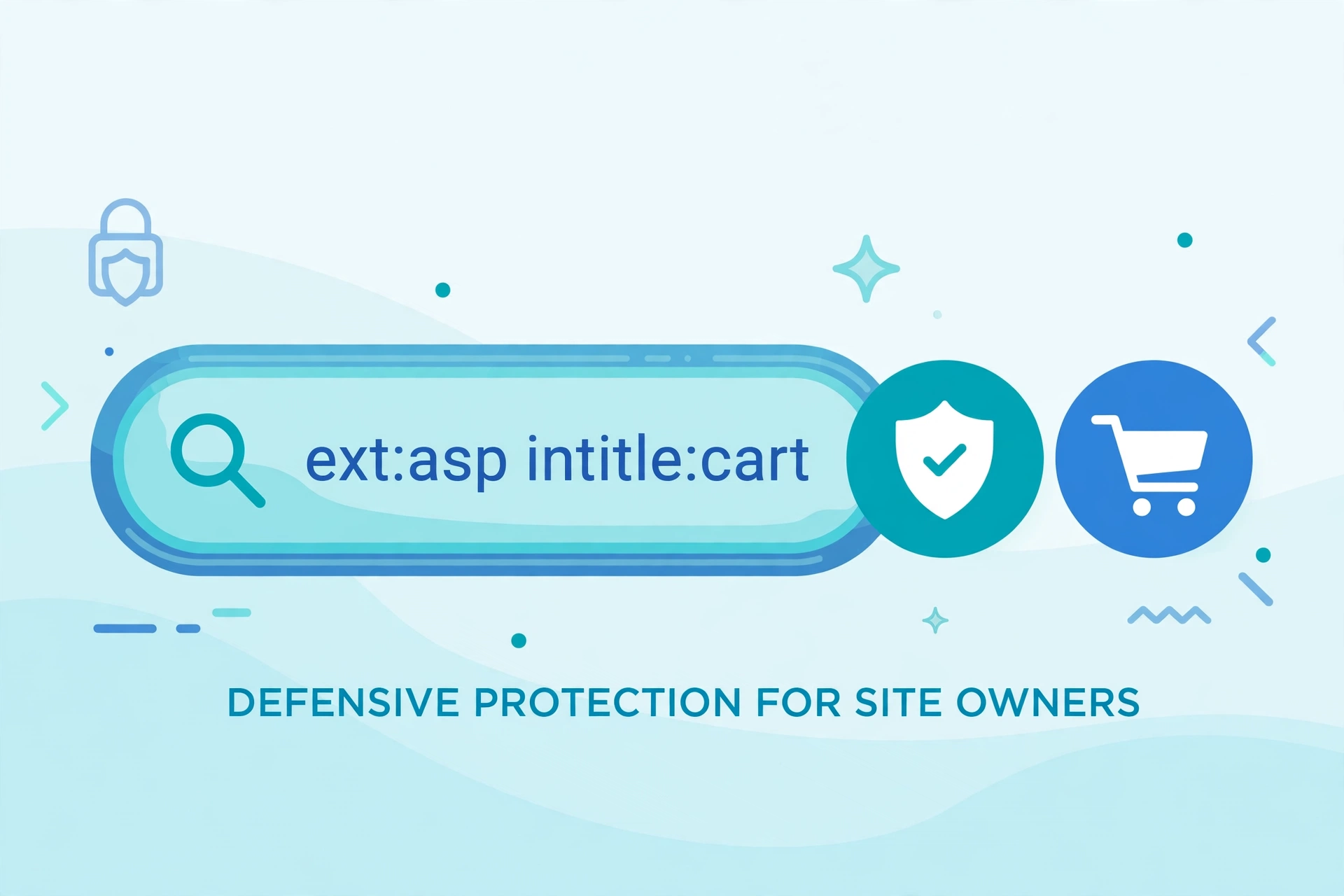
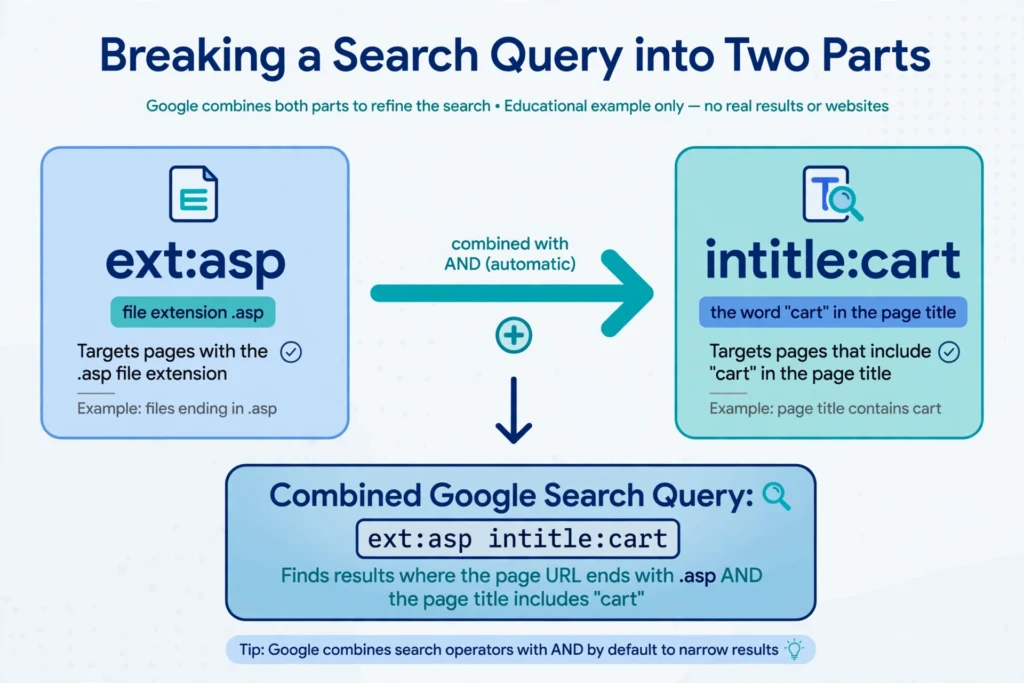
ext:asp intitle:cart asks Google for pages that meet two conditions at the same time:
ext:asp— the page is associated with the.aspfile extension.intitle:cart— the word “cart” appears in the page title.
In plain terms, it looks for older, ASP-based pages whose titles mention a cart. It does not prove that a page is a working shop, that it is insecure, or that it contains payment details. Many results will be ordinary, public pages, old demo pages, or pages that simply use the word “cart” in a different sense.
If you run a store, the practical takeaway is simple: cart, checkout, account, and order-confirmation pages generally do not need to appear in Google search. Check whether yours do, keep them out of the index with the right method, and protect anything private with login controls — not with search settings alone.
What Each Part of the Query Means
ext:asp: The File Extension Filter
In Google search, ext: works like filetype:. It limits results to a particular file type or extension.
So ext:asp asks for results associated with .asp files. The .asp extension is commonly linked to Classic ASP, Microsoft’s older server-side scripting technology. This is different from ASP.NET, which more commonly uses .aspx for its pages.
That distinction matters for two reasons:
- A
.aspresult does not automatically mean the whole site runs on Classic ASP today. URLs can be rewritten, old pages can linger in the index, and a site can mix technologies. - A modern ASP.NET or ASP.NET Core store may use no extension at all in its URLs. So this query will miss many modern shops entirely. It is a narrow filter, not a census of online stores.
Think of ext:asp as a clue about the page’s history or technology, not a verdict about the site behind it.
intitle:cart: The Page Title Filter
The intitle: operator limits results to pages with a given word in their title. Here, that word is “cart”.
Google’s own debugging documentation for search operators lists site: and filetype: among the operators you can use to inspect your pages in search, and third-party operator guides consistently describe intitle: the same way: it matches the title, not necessarily the body text or the URL.
That creates some natural false positives. A page titled “Cart” could be:
- A shopping cart page
- A help article about carts
- A blog post that mentions a cart in its title
- An old test or demo page that was never removed
So a result for this query is a starting point for a site owner to review, not proof of anything sensitive.
Why the Two Parts Are Combined
On their own, each operator is broad. Together, they narrow the results:
ext:aspalone would return a huge mix of old ASP pages on every topic.intitle:cartalone would return cart-related pages built on any technology.- Combined, they focus on one slice: ASP pages with “cart” in the title.
Search operators work best this way. You add one filter at a time until the results match the specific set of pages you want to review. Site owners and developers use the same technique on their own domains, as you will see below.
Why Does This Query Appear in Search?
There are several ordinary reasons this query shows up, and they are not all the same.
1. Site owners auditing their own sites
This is the most useful reason. A developer or store owner may run a scoped version of the query against their own domain to see what Google has indexed. For example, adding site: to the query limits it to one site:
site:yourstore.com ext:asp intitle:cart
Replace yourstore.com with your own domain only. Never run this kind of audit against a site you do not own or manage, and never use results from someone else’s site to try to access, copy, or change anything on it.
Google’s Search Central documentation on search operators for debugging your site describes this kind of use directly: operators such as site: and filetype: can help you inspect different aspects of your own pages in search.
2. SEO and technical audits
SEO specialists use operators to find indexed pages that should not be indexed, duplicate pages, staging pages left public by mistake, and old pages that should have been removed or redirected. A cart page in the index is a classic example: it adds no value in search, it can confuse shoppers, and it can create duplicate or thin pages if every visitor’s cart gets its own URL.
3. Researchers studying old web technology
Because .asp points to an older technology, researchers and developers sometimes use this query to find examples of legacy sites, to study how older stores were built, or to plan migrations to modern platforms. Again, looking at a public page is very different from trying to use it in a way the owner did not intend.
4. Curiosity and copied query lists
Search operator queries also spread through blog posts, cheat sheets, and forums. Someone may search the exact phrase simply because they saw it listed somewhere and want to know what it means — which is likely how you arrived here.
None of these reasons, on their own, means a site is vulnerable. The query only returns pages Google has already indexed and made public in search results. It does not unlock private pages, bypass a login, or reveal payment data.
What This Query Does Not Prove
It is easy to over-read a search result. Here is what ext:asp intitle:cart does not tell you:
- It does not prove a page is a live shop. The page may be abandoned, a demo, or a help article.
- It does not prove a page is insecure. Being indexed is not the same as being unprotected. A public cart page with no personal data in it is a different issue from a page that exposes customer information.
- It does not show payment details. If a result appears to show private or payment information, do not copy, share, or try to use it. That is a matter for the site owner to fix urgently, and for the affected people to be told through proper channels — not something to explore further.
- It does not work the same way on every search engine. Operator support varies. A query that works in Google may behave differently, or not at all, somewhere else.
- It does not guarantee complete results. Google may not index every page on a site, and it may show a title that differs from the page’s current title if the page has changed since it was last crawled.
If you are a shopper and you land on a strange-looking cart page from a search result, do not enter personal or payment details there. Go to the store’s homepage directly, or contact the store through a channel you already trust. If the store itself is unfamiliar, pause and apply the same careful checks you would use when checking whether a website is a scam before you trust it with your details.
The Key Distinction: Crawling Is Not the Same as Indexing
Before you fix anything, you need one distinction that trips up many site owners.
- Crawling is Googlebot visiting a page.
- Indexing is Google adding that page to its search results.
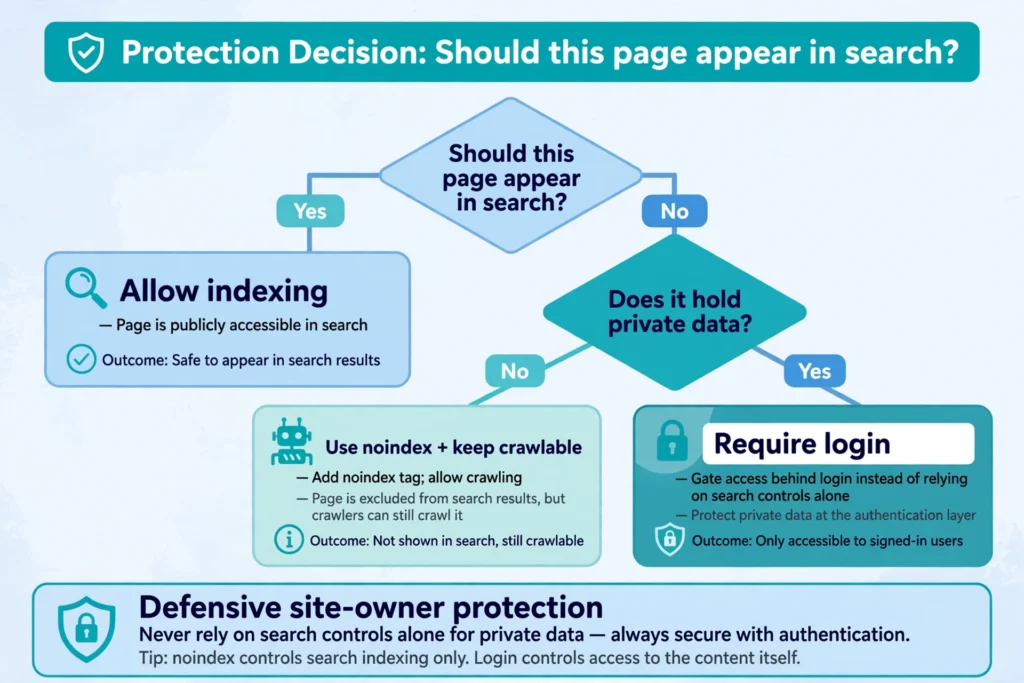
Your robots.txt file controls crawling. A noindex directive controls indexing. They are not interchangeable, and using the wrong one is the most common mistake in this area.
Google’s guidance on controlling what you share with Google Search lists the main blocking methods side by side, including removing content, password-protecting files, using a noindex rule, and disallowing crawling with robots.txt. The right choice depends on what you want to happen.
Here is the rule that matters most for cart pages:
- If you want a page removed from search results, Google usually needs to be able to crawl it so it can see the
noindexinstruction. - If you block the page in
robots.txtat the same time, Googlebot cannot visit it, cannot see thenoindextag, and the URL may stay in the index — sometimes shown without a description — especially if other pages link to it.
So for a page that is already indexed, do not start by blocking it in robots.txt and adding noindex together. That combination can work against you. The steps below put them in the right order.
How to Check Your Own Cart Pages (Step by Step)
Run this check only on a site you own or manage. If you manage a client’s site, get their permission first and work within the access they gave you.
Step 1: Search your own site with scoped operators
Start with a scoped search in Google. Try these variations, replacing yourstore.com with your real domain:
site:yourstore.com intitle:cartsite:yourstore.com inurl:cartsite:yourstore.com inurl:checkoutsite:yourstore.com intitle:checkout
Note what comes back. You are looking for:
- Live cart or checkout pages
- Old cart pages from a previous platform or theme
- Cart pages with parameters, such as session IDs or filters, creating many near-identical URLs
- Account, order-history, or thank-you pages that should not be public
Make a simple list: the URL, what kind of page it is, and whether it should ever appear in search. Most cart and checkout pages belong in the “should not appear” group.
Step 2: Check Google Search Console
Google Search Console is the reliable place to confirm what Google actually holds for your site, rather than guessing from a public search.
- Open the Pages (Page indexing) report and look for cart, checkout, and account URLs.
- Use URL Inspection on a specific cart URL to see whether Google reports it as indexed, and whether it sees a
noindextag or a robots.txt block. - If you see “Indexed, though blocked by robots.txt”, that is the warning sign described above: Google knows the URL exists, but it cannot crawl it to read a removal instruction.
Search Console only shows data for properties you have verified. If you have not verified your site yet, do that first — it is also the tool you will need for the removal step below.
Step 3: Check your sitemap and internal links
A cart page should not be in your XML sitemap. If it is, remove it. Sitemaps are a list of pages you want search engines to consider, so including a cart page sends the opposite signal to the one you intend.
Also check whether other pages link to cart URLs in a way search engines can follow. A link from a public page can help Google discover a URL even if you would rather it did not. This does not mean you must remove the “View cart” button shoppers use — that button is for people, and it is usually handled by your platform in a way that does not create an indexable public page. What you want to avoid is a plain, crawlable link to a specific, indexable cart URL in your content, footer, or sitemap.
Step 4: Decide what each page should do
Not every utility page needs the same treatment:
- Cart and checkout pages: Keep them working for shoppers, but keep them out of search with
noindex. - Account and order-history pages: These should require login. Search controls are a backup, not the protection.
- Thank-you and order-confirmation pages: Keep them out of search with
noindex. They have no value as search landing pages and can leak order details in their titles or URLs. - Public help pages about carts: If you have a genuine help article titled something like “How to use your cart”, that page can stay indexed. It is content for shoppers, not a functional cart.
Write the decision down next to each URL from Step 1. That list becomes your fix list.
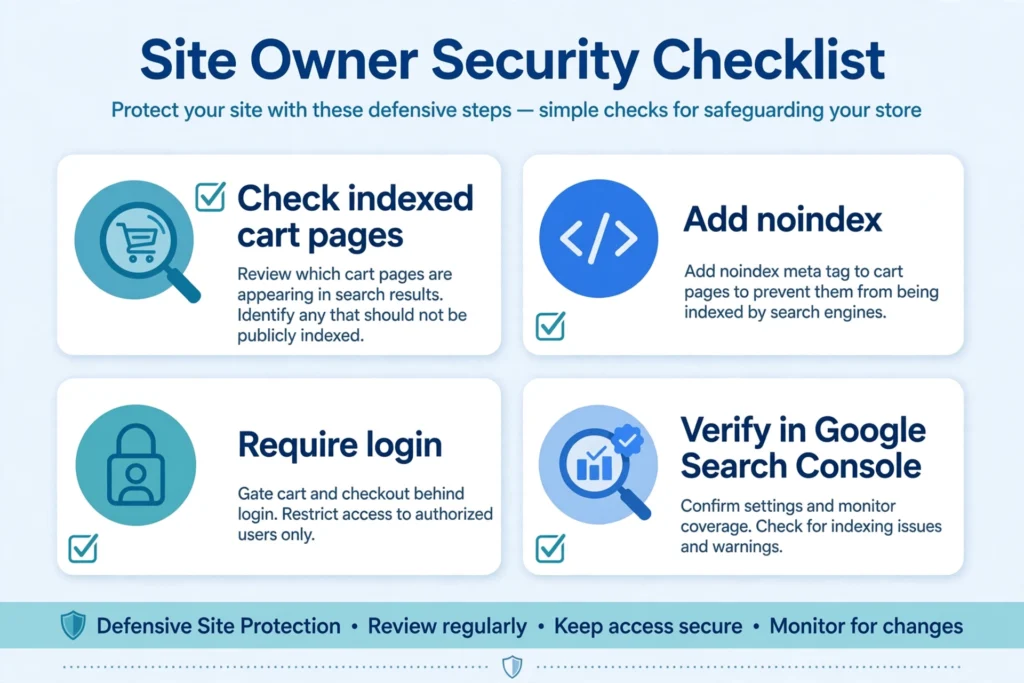
How to Protect Your Cart Pages
Use noindex for pages that should exist but not rank
For a cart or checkout page that shoppers still need to use, add a noindex robots meta tag to the page’s HTML head:
<meta name="robots" content="noindex, follow">The follow part means search engines may still follow links on the page. The noindex part tells them not to include the page itself in search results.
Google’s guide to blocking search indexing with noindex covers this method in detail. The important condition, repeated in Google’s own documentation, is that the page must remain crawlable so Google can read the tag.
In WordPress and most e-commerce platforms, you should not have to edit every cart page by hand. Look for:
- Your SEO plugin’s settings for that page type or template
- Your theme or platform’s settings for cart, checkout, and account pages
- A single template change that applies
noindexto all pages of that type
Test one page after you change it. Use Search Console’s URL Inspection tool to confirm Google can fetch the page and sees the noindex tag.
Use robots.txt carefully, not as a removal tool
A robots.txt file can tell crawlers not to visit certain paths. For example, a store might disallow its cart and checkout paths for crawl-budget reasons. That is a legitimate use — but it is not a removal tool on its own.
If a page is already indexed and you want it out of search, follow this order:
- Make sure the page is crawlable — remove any robots.txt block that stops Googlebot reaching it.
- Add the
noindextag. - Wait for Google to recrawl the page and process the tag.
- Confirm in Search Console that the URL is no longer indexed.
- Only then, if you still want to save crawl budget, consider re-adding a robots.txt block.
Reversing steps 1 and 2 is the mistake that leaves URLs stuck in the index. If you are unsure, leave the page crawlable with noindex in place. That combination is safer than a block that hides the removal instruction.
Also, never use robots.txt as your only protection for private content. It is a public file — anyone can open yourstore.com/robots.txt and read it — and it is a request to well-behaved crawlers, not a security barrier.
Require login for anything personal
This is the most important protection, and it has nothing to do with search operators.
Cart contents, order history, addresses, and payment settings belong behind authentication. If a page shows one customer’s private data to anyone who visits the URL, no noindex tag or robots.txt rule fixes that. The fix is server-side: the page must check that the visitor is logged in as the right customer before it shows anything personal, and it must not rely on an obscure URL to keep it private.
The same principle applies to staging sites, admin areas, and test stores. Password-protect them, restrict them by IP where that fits your setup, or keep them off the public internet entirely. A staging copy of your store should never be indexed, and it should never be reachable by strangers in the first place.
Use Google Search Console Removals for urgent cases
If a cart, account, or confirmation page is already indexed and you need it hidden quickly, Google Search Console has a Removals tool. A temporary removal hides the URL from Google search results for a limited period — commonly described as about six months — while your permanent fix takes effect.
Treat this as a fast patch, not the fix itself:
- Submit the exact URL, or a prefix if you need to cover a group of URLs.
- Keep the
noindextag or login protection in place behind it. - Check back in Search Console to confirm the URL stays out of results after the temporary removal period.
If the page is on someone else’s site and it exposes your personal data, do not try to fix their site yourself. Contact the site owner, and use Google’s own removal request routes for content you do not control. That route is separate from Search Console, which only works for sites you have verified.
Clean up old and duplicate cart URLs
Old platforms leave traces. After a migration, a redesign, or a theme change, you may find:
- Old
.aspcart URLs still indexed even though the new store uses different URLs - Cart URLs with session parameters creating endless variations
- Test carts created during development that were never deleted
For each one, choose the right ending:
- Page no longer exists: Let it return a 404 or 410 status so Google can drop it naturally.
- Page moved to a new address: Redirect it (301) to the correct new page.
- Page still exists but should not rank: Use
noindexas described above. - Page should never have been public: Put it behind login or remove it, then request removal if it is still indexed.
Do not redirect a private cart URL to your homepage just to hide it. That can confuse shoppers and does not address the underlying indexing or access problem.
Keep your platform and plugins updated
Legacy ASP stores deserve special attention here. Older code, unpatched plugins, and forgotten test pages are more likely to create the exact kind of indexed, half-public pages this query surfaces. If you still run a Classic ASP store, plan your maintenance honestly:
- Keep the server software patched through your host or IT provider.
- Remove demo, test, and sample pages you no longer need.
- Review what your cart pages actually expose in their titles, URLs, and page source.
- If a migration to a supported platform is on your roadmap, treat indexed legacy URLs as part of that project, with redirects and
noindexrules planned before launch, not after.
You do not need to migrate overnight because a search operator exists. But you should not leave an unmaintained store public and unreviewed either.
A Quick Checklist for Site Owners
Use this list after you run the checks above:
- I searched my own domain with
site:plusintitle:cartandinurl:cartand listed what came back. - Cart, checkout, account, and confirmation pages are marked
noindexwhere they should not rank. - Those pages are still crawlable, so Google can actually see the
noindextag. - Account and order pages require login — they do not rely on being unlisted or unlinked.
- Cart and checkout URLs are not in my XML sitemap.
- Any urgent indexed URL has a Search Console removal request plus a permanent fix behind it.
- Old, migrated, or test cart URLs have been redirected, removed, or marked
noindex. - Staging and admin areas are password-protected, not just hidden from search.
- I re-checked in Search Console after the next crawl to confirm the changes took effect.
If you work through that list once, and repeat the scoped search every few months or after a redesign, you will catch most cart-indexing problems before they become a pattern.
What to Do If You Find Someone Else’s Cart Page in Search
You may run this query out of curiosity and land on a cart page that belongs to another store. The responsible response is simple, and it does not involve testing the page:
- Do not try to view, change, or complete someone else’s cart or checkout.
- Do not enter personal or payment details on a page you found this way.
- Do not copy or share any personal data if the page appears to show it.
- If the page looks like it exposes private information by mistake, tell the site owner through their published contact channel, with the URL and a brief description, and leave it there.
The same rule applies in reverse. If someone tells you your own cart pages are indexed, thank them, check the URLs they sent, and work through the checklist above. That report is useful information, not an attack.
FAQ
What does ext:asp intitle:cart mean in Google search?
It combines two filters. ext:asp limits results to pages associated with the .asp extension, and intitle:cart limits results to pages with the word “cart” in their title. Together, they ask for ASP pages whose titles mention a cart.
Is ext:asp intitle:cart a website?
No. It is a search query, not a site, an app, or a tool. You type it into Google’s search box, and Google returns matching pages it has indexed. There is no single “ext:asp intitle:cart” website to visit or sign up for.
Does a result for this query mean a site has been hacked?
No, not on its own. A result only means Google indexed a public page that matched those two filters. It does not prove unauthorised access, a data breach, or a security flaw. A separate review of that specific page and site would be needed before anyone could say that.
Why would a cart page appear in Google search at all?
Usually because nothing told Google not to index it. The page may have been linked from a public page, included in a sitemap, or left with default settings that allow indexing. Old or migrated pages can also stay in the index after a store changes platforms if no redirect or noindex rule was added.
Should my cart page be indexed?
In most cases, no. Shoppers reach their cart from your store, not from a search result. Indexing a cart page rarely brings useful traffic, and it can create duplicate pages if each visitor’s cart has its own URL. Product and category pages are the pages you generally want in search; cart and checkout pages are not.
What is the difference between robots.txt and noindex?
Robots.txt controls crawling: it tells crawlers not to visit a URL. Noindex controls indexing: it tells search engines not to include a page in results, but the page must be crawlable for them to read the instruction. Blocking a page in robots.txt and adding noindex at the same time can leave the URL stuck in the index, because Googlebot cannot reach the page to see the noindex tag.
How do I remove an indexed cart page from Google?
For a site you own, add a noindex tag and keep the page crawlable, then confirm in Google Search Console that Google has processed it. For urgent cases, also use Search Console’s Removals tool for a temporary hiding while the permanent fix takes effect. If the page should not exist at all, delete it so it returns a 404 or 410, or put it behind login if it holds personal data.
Can I use this query on a competitor’s site?
You can run a public search and look at public results, but you should not use what you find to access, copy, change, or interfere with someone else’s site, cart, or customer data. If you are doing competitive research, stick to public product and content pages, and keep any audit that touches accounts, carts, or checkout flows limited to sites you own or have permission to test.
Does noindex protect private customer data?
No. Noindex only keeps a page out of search results. It does not stop someone who already has the URL from opening the page. Private data needs proper authentication and server-side access checks. Think of noindex as a visibility setting and login as the actual lock.
What if my store no longer uses .asp, but old .asp cart pages still appear?
That is common after a migration. List the old URLs, redirect the ones that have a genuine new home, let genuinely dead ones return 404 or 410, and mark any that must stay live but unranked with noindex. Then verify in Search Console that the old URLs drop out of the index over time.
How often should I check for indexed cart pages?
A quick scoped search every few months is enough for most small stores, plus an extra check after a redesign, a platform migration, a theme change, or any change to your sitemap or SEO settings. Larger stores with frequent changes may want to fold the check into their regular technical SEO routine.
Bottom Line
ext:asp intitle:cart looks more mysterious than it is. It is simply Google’s way of asking for ASP pages with “cart” in the title — a narrow, useful filter for site owners auditing their own stores, and a reminder for everyone else that search visibility is something you should choose deliberately.
If you run a store, the action is straightforward. Search your own domain, list any cart, checkout, or account pages that appear, keep them out of search with noindex while keeping them crawlable, and protect anything personal with login controls. Use Search Console’s Removals tool only as a fast, temporary step behind a permanent fix.
Do that, and a query like this stops being a worry. It becomes what it should be: a quick check you run on your own site, on your own terms, to confirm that shoppers find your products in search — and reach their cart only through your store.