AI Assistants for Productivity: Pick by the Job, Not by the Hype
Most guides to AI assistants for productivity start with the wrong question. They ask which assistant is best, as if one tool could be best for writing a report, running your calendar, taking meeting notes, and wiring up your apps at the same time. It cannot. An assistant that is brilliant at research will not protect your focus time. A scheduling tool will not write a decent brief.
The better question is much smaller, and much more useful: what job do you repeat every day, and which assistant actually takes that job off your hands?
That is how this guide is organised. Not as a flat ranking, but by job. You will find a decision table first, so you can narrow the field in about thirty seconds, then one or two picks for each job, with what each tool really does in a workday, where it falls short, and what it costs. Prices are US list prices checked against vendor pages in late October 2026, and they change, so check the checkout page before you buy. Where vendor pages disagree with each other, that is flagged rather than smoothed over.
If you only take one idea from this article, take this: start with where your work already lives, then match the tool to the job. Everything else follows from that.
Choose in 30 seconds: the decision table
An AI assistant for productivity is only useful if it can see the work you are actually doing. A tool that lives outside your inbox, your calendar, and your documents will always need you to copy things into it, and that copying is exactly the work you were trying to get rid of.
| Your main job | If you live in Google Workspace | If you live in Microsoft 365 | If you use a mix of tools |
|---|---|---|---|
| General help, writing, thinking | Gemini, then ChatGPT | Microsoft 365 Copilot, then ChatGPT | ChatGPT or Claude |
| Research with sources you can check | Perplexity, then Gemini | Perplexity, then Copilot | Perplexity |
| Long documents and careful editing | Claude | Claude, or Copilot in Word | Claude |
| Meeting notes | Granola or Otter.ai | Otter.ai, or Copilot in Teams | Granola or Otter.ai |
| Scheduling and focus time | Reclaim.ai | Reclaim.ai, or Copilot for light scheduling | Reclaim.ai or Motion |
| Email triage and replies | Gemini in Gmail, or Superhuman | Copilot in Outlook, or Superhuman | Superhuman, if email is the bottleneck |
| Repeating multi-app workflows | Zapier | Zapier, or Copilot agents | Zapier |
Read the table across, not down. Find your job first, then your ecosystem. The tool at the intersection is where to start testing. Everything below explains why, and when to pick the second option instead.
That is also the honest answer to the search for the best ai assistant for productivity, and to the closely related best ai assistant for work productivity. There is no single winner, because “work” is not one job. A product manager living in Notion, a developer living in a code editor, and a sales lead living in their inbox do not need the same assistant, and a guide that pretends they do is selling you a subscription, not a solution.
How this guide picks, and what it will not do
The three filters
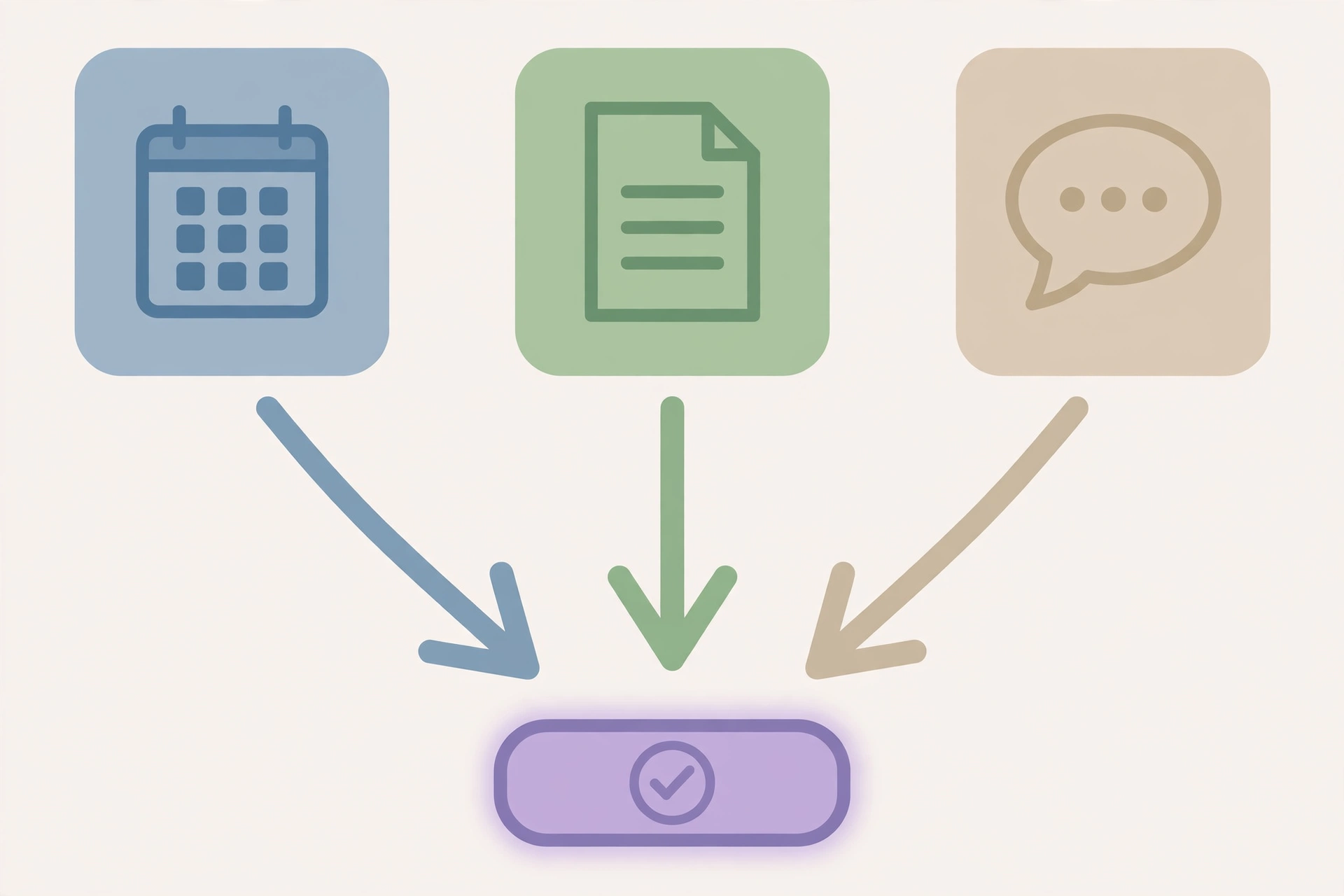
Every pick below passed three filters. First, where does your work already live? An assistant that cannot reach your mail, your calendar, or your documents is a demo, not a helper. Second, what do you repeat? A tool earns its price when it handles a job you do daily, not a job you do once a quarter. Third, what must you not paste into a general chatbot? Customer data, contracts, credentials, and unreleased work belong in a workspace or enterprise assistant with admin controls, not in a free chat window. That third filter matters more than any feature list, and it is covered properly near the end.
Why a flat “10 best” list misleads
Most listicles rank tools as if they were competing for the same job. They are not. A research tool wins by giving you a sourced answer you can verify. A calendar tool wins by leaving a block of time alone when a meeting tries to eat it. A writing tool wins by holding a long argument together without losing the thread. Put them in one ranking and the comparison becomes meaningless, because the criteria keep changing.
So this guide gives you one or two tools per job, and says plainly when to skip each one. If a tool does not fit your job, it does not matter how good it is in general.
General brain: the assistant you open first
This is the assistant you reach for when the task is not yet defined: draft something, think something through, explain something, plan something. Most people only need one general brain. Paying for two is the most common waste in this whole category.
ChatGPT: best general starting point
ChatGPT is the easiest general assistant to start with because it does a little of everything, and it does most of it well enough. In a workday, that looks like drafting an email you do not want to stare at for twenty minutes, turning rough notes into a structured outline, explaining a contract clause in plain language, brainstorming ten subject lines and keeping the two that are not terrible, and writing a first draft you then edit properly.
Its strength is range. Writing, coding help, brainstorming, research summaries, and image generation all live in the same conversation, and you can keep a project or a custom instruction set for recurring work. Its limitation is also range. Because it tries to do everything, it is not the best at any single deep job, and it will answer confidently even when it should say it does not know. Treat every factual claim it makes as a draft to check, not as a finished answer.
On price, ChatGPT Plus is $20 per month. There is a free plan, and a cheaper Go plan at $8 per month, but Plus is the plan most working people actually land on, because it lifts the limits that make the free plan frustrating for daily use. Start on free, move to Plus only when you can name the limit you keep hitting.
Pick ChatGPT if you want one flexible assistant and you do not live entirely inside one suite. Skip it as your only tool if your main job is long-document editing or sourced research, where the next two sections give you better options.
Claude: best for long, careful work
Claude is the general assistant to pick when the work is long and the thinking has to hold together. Give it a forty-page report, a messy set of notes, or a contract, and it is noticeably better at staying with the argument, editing in a consistent voice, and saying when it is unsure, rather than filling a gap with a confident guess.
In a workday, Claude earns its keep on the jobs that take concentration: rewriting a long draft without flattening it, summarising a pile of documents into a decision memo, working through a complex analysis step by step, and, for developers, working in code with Claude Code, which is included on paid plans. Its limitation is ecosystem. It is less woven into Google and Microsoft apps than Gemini and Copilot, so you will copy things in and out more often, and it does not generate images or video the way ChatGPT and Gemini do.
Claude Pro is $20 per month, or $17 per month when billed annually, which is $200 upfront. The free plan is a genuine trial, not a daily driver, because it does not include Claude Code and it caps usage much sooner. If you already pay for Claude for writing, do not also pay for a second general assistant unless you have a specific reason. One general brain is enough.
Research: answers you can check
Research is a different job from general help. Here the test is not whether the answer sounds good, but whether you can open the source and see that it is true. That single test separates the tools in this section from the ones above.
Perplexity: best for sourced answers
Perplexity is an answer engine first and a chatbot second, and that order matters. Ask it a factual question and it searches the web, then gives you an answer with citations attached to the claims, so you can click through and check. Follow-up questions stay in the same thread, so you can narrow a topic without starting over, and you can upload your own files on paid plans and ask questions about them.
In a workday, Perplexity is the tool for the jobs where being wrong is expensive: checking a competitor’s pricing, finding the original source behind a statistic, building a brief on a new topic, or answering a technical question where the documentation matters more than a fluent paragraph. Its limitation is that it is a researcher, not an editor. It will give you a well-sourced summary, but it will not write your report for you, and it will not automate a workflow. Pair it with a writing assistant if you need both, and do not mistake a cited answer for a verified one. Click the citation. That is the whole point.
Perplexity Pro is $20 per month, or $200 per year. The free plan gives you cited answers with a small daily allowance of Pro searches, which is enough to test whether sourced answers change how you work. Max, at $200 per month, mostly buys higher limits and agent credits, not better footnotes, and most people should not start there.
Gemini: best if your research lives in Google
Gemini is the research and general assistant to pick when your work already lives in Gmail, Docs, Sheets, and Drive. Inside that ecosystem, it can pull context from your own documents and mail, summarise a thread without you copying it out, help draft in Docs, and work across Sheets, which is a kind of research that a standalone chatbot cannot do without a paste.
Its limitation is the mirror image of its strength. Outside Google’s ecosystem, it is less compelling than ChatGPT or Claude, and the value drops sharply if your team runs on Microsoft 365. Do not buy it for a Google-free workflow.
On price, Google AI Pro is $19.99 per month. Google has renamed this plan more than once — it was previously sold as Google One AI Premium — so if a guide quotes an old plan name, check the current checkout page rather than trusting the label. The free version of Gemini is enough to test the ecosystem fit; pay when you need the higher limits and the deeper Workspace integration.
Writing and long documents
Writing is where most people first notice the difference between a good assistant and a good-enough one. A short email can be drafted by almost anything. A long document that has to stay coherent, accurate, and in your voice cannot.
Claude again, for a different reason
Claude appears twice in this guide on purpose. For writing, it is not just a general assistant that happens to write well. It is the tool that best holds a long piece together: a report that builds an argument over twenty pages, a proposal that has to stay consistent about numbers and names, a set of documents that need to be edited into one voice.
If you already have Claude Pro for general work, you already have your writing assistant. Do not pay for a separate writing tool on top of it unless that tool lives inside the workspace where you actually write. The test is simple: does the writing tool see the documents you are writing about, or does it only see what you paste into it?
Notion AI: best when the answer must come from your own workspace
Notion AI is a different kind of writing assistant, because its advantage is not the model. It is the context. It drafts, edits, summarises, and answers questions against your own Notion pages and databases, which means it can answer “where is our refund policy, and draft a reply from that page only” without you hunting for the page first. It also includes AI meeting notes and workspace search on the Business plan.
That context is also its limitation. If your team does not already live in Notion, do not buy Notion Business just for the AI. Put the policy in a shared document and use ChatGPT or Claude instead. The workspace has to come first; the AI is a reason to stay, not a reason to move.
On price, full Notion AI is bundled into Business at $20 per member per month billed annually, or $24 per member per month billed monthly. Free and Plus only include a limited AI trial, which is an important detail, because older guides still describe a standalone AI add-on that is no longer sold to new buyers. Custom Agents, for autonomous tasks, cost extra credits on top. Check the checkout page, because this is one of the plans most likely to surprise you at renewal.
For an ai assistant for product managers, this workspace pattern is worth a specific note. A product manager’s work is mostly decisions buried in specs, meeting notes, and roadmaps. An assistant that can search that workspace and draft from it saves more time than a general chatbot that knows nothing about your product, even if the general chatbot writes a prettier paragraph.
Meetings: stop taking notes by hand
Meetings are the clearest productivity win in this whole guide, because the job is so well defined: capture what was said, turn it into decisions and actions, and make it searchable later. The tools here differ mainly in how they capture, and what happens to the recording afterwards.
Granola: best bot-free notes
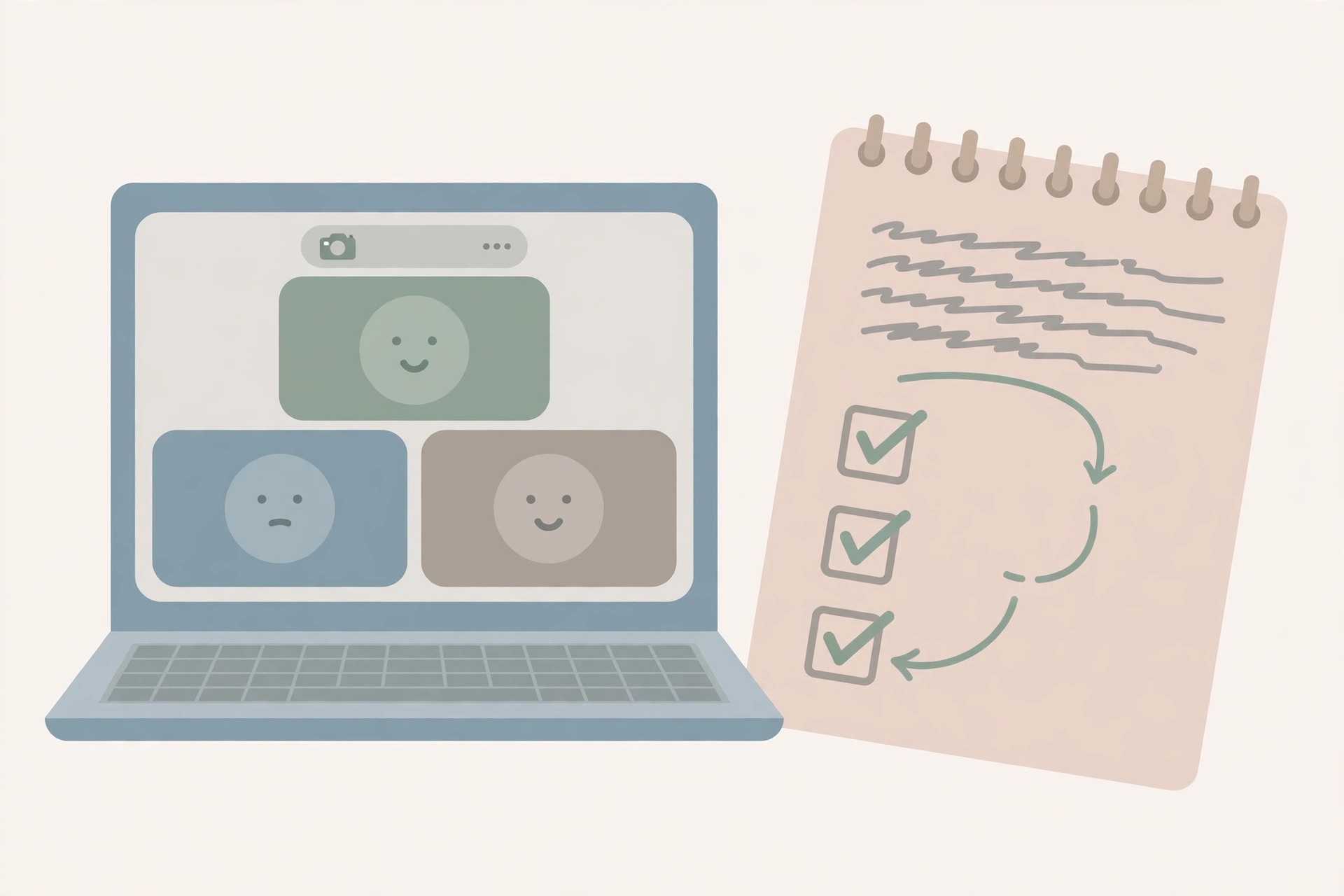
Granola takes a different approach from most meeting tools. It captures audio from your own computer, so no recording bot joins the call and no guest has to wonder who the silent participant is. You jot rough notes during the meeting the way you normally would, and afterwards Granola fills the gaps from the transcript and structures decisions and action items around what you wrote. The result reads like your notes, cleaned up, rather than a generic summary of everything that was said.
That approach suits founders, consultants, and anyone on external calls where a bot joining feels awkward. Its limitations are real, though. There is no video recording to replay, audio is deleted after transcription, and the free plan only keeps a limited history, so regular users move to paid fairly quickly. You also still have to handle recording consent yourself, which is a legal and professional obligation, not a feature.
Granola’s Business plan is $14 per user per month, with a free Basic plan for trying the bot-free approach. If you take notes on a lot of external calls, start here. If you need a searchable library of every meeting your team has ever had, the next tool fits better.
Otter.ai: best searchable transcript library
Otter.ai is the meeting assistant to pick when the transcript itself is the product. Its bot joins Zoom, Google Meet, and Microsoft Teams, or you record in the room, and you get a transcript, a summary, and a chat interface over that transcript, so you can ask “what did we agree about pricing?” weeks later and get an answer with the relevant passage attached.
In a workday, Otter earns its keep for teams with a lot of recurring meetings, where the cost of a forgotten decision is higher than the cost of the subscription. Its limitation is minutes. The free Basic plan gives you 300 transcription minutes per month, capped at 30 minutes per conversation, which means a single one-hour meeting already breaks the per-conversation limit. Paid plans lift those caps, but you should size the plan by your longest meeting and your monthly minutes, not by the headline price.
Otter Pro is $16.99 per user per month billed monthly, or $8.33 per user per month billed annually. Business, at $19.99 per user per month billed annually, adds unlimited meetings and longer conversations. Start on free only if your meetings are short and infrequent; otherwise, the free tier will frustrate you in the first week.
Scheduling: the calendar that defends your time
Scheduling tools are often sold as if they were all the same, but they solve two different problems. One problem is that meetings eat your focus time. The other is that tasks and deadlines keep moving. Pick the tool for the problem you actually have.
Reclaim.ai: best ai calendar assistant for personal productivity
Reclaim.ai is an ai calendar assistant for personal productivity in the most literal sense: it sits on top of Google Calendar or Outlook and defends the time you meant to spend on deep work. It schedules focus blocks, habits, and tasks around your meetings, and it reschedules them when a meeting moves, instead of letting the task quietly disappear from the week.
That is a narrower job than Motion’s, and for most people it is the right narrower job. If your calendar is full of meetings and your real work keeps getting pushed to evenings, Reclaim is the fix. Its limitation is scope. It will not manage a project, write a document, or take meeting notes. It does one layer of your workday well, and it expects you to pair it with a notes tool if you need that too.
Reclaim’s Lite plan is free, and Starter is $10 per seat per month billed annually, or $12 billed monthly. The free plan is genuinely usable for testing whether defended focus time changes your week, which is more than can be said for most free tiers in this guide.
If you prefer a fixed plan to an auto-moving one, there is also a non-AI alternative worth considering. Tech2Explore’s guide to the best digital planners covers planners that do not reshuffle themselves, and for some people that stability is exactly the point. An AI calendar assistant is not automatically better than a good planner; it is better only if your days actually change shape every week.
Motion: best if tasks and deadlines keep moving
Motion is the tool to pick when the problem is not meetings eating focus time, but tasks and deadlines that will not stay still. Give it tasks with durations, deadlines, and priorities, and it builds your day from them, then rebuilds the plan automatically when a meeting runs long, a new urgent task appears, or you do not finish something on time. It also bundles project management, documents, and meeting notes, so it can replace several subscriptions at once.
That breadth is both the appeal and the risk. If your work is deadline-driven and constantly reprioritised, Motion can genuinely replace the daily planning ritual. If your work is simpler, it is more software than the job needs, and a schedule that keeps moving can be harder to trust than a schedule you set yourself. Try the trial and watch whether you trust the rebuilt plan by day five, because that trust is the product.
On price, read the pricing page carefully, because it defaults to the team view. The team rate is shown at $19 per seat per month billed annually for Pro AI, while solo users have been reported at $29 per month billed annually, or $49 month to month, for the same plan. That gap is exactly the kind of detail that makes a copied price wrong, so check the solo versus team view at checkout before you commit. There is no permanent free plan, only a trial.
Email: speed, or work taken off your plate
Email tools split into two kinds, and confusing them is expensive. One kind makes you faster at email. The other kind takes some of the email work off your plate. Decide which bottleneck you have before you pay.
Superhuman: best for reply-heavy inboxes
Superhuman is a separate email client for Gmail and Outlook, built for speed. A split inbox separates the messages that matter from the rest, keyboard shortcuts let you move through mail without touching the mouse, snippets handle the replies you write every week, and AI drafting and summaries sit inside that fast interface. For someone who processes a high volume of email every day, the speed compounds. An hour saved in the inbox, every day, is not a small thing.
Its limitation is price and commitment. You are switching email clients, not adding a plugin, and you are paying a premium for speed. If only a small share of your work arrives by email, or if most of your work happens in team chat, that premium is hard to justify. And if you want the assistant to draft replies automatically, check which plan includes auto-drafts, because that feature sits on a higher tier than basic AI drafting.
Superhuman’s Starter plan is $30 per month, or $25 per month billed annually, which is $300 per year. Business, which adds auto-drafts and CRM integrations, is higher. Superhuman also sells a wider suite, and suite pricing differs from Mail pricing, so confirm whether you are looking at Mail or the suite before you compare it with anything else. There is no free tier, only a trial.
Copilot in Outlook and Gemini in Gmail: best if you will not switch apps
If you will not switch email clients, do not buy a new one for drafting alone. Try the suite assistant you already pay for first. Copilot in Outlook can draft and summarise threads inside Outlook, and Gemini in Gmail can do the same inside Gmail, and for many people that is enough. The drafting will be less polished than a dedicated email tool, and it will only happen when you prompt it, but it costs nothing extra if you already have the suite.
That is a useful rule for the whole guide: before you add a tool, check whether the suite you already pay for does the job well enough. The best assistant is often the one you already own.
Automation: when the job repeats exactly
Automation is not a general assistant. It is what you buy when a job repeats in exactly the same shape, week after week, and you are tired of doing it by hand. The test for automation is different from every other section: if the job changes every time, automate nothing. If it never changes, automate it once and stop touching it.
Zapier: best for no-code, multi-app workflows
Zapier connects apps and moves work between them without code. A form submission creates a task, a new customer triggers a welcome sequence, a spreadsheet row updates a CRM record, a meeting note creates follow-up tasks. You build these as Zaps, which are trigger-and-action workflows, and you can add filters, paths, and formatting steps without writing code. It also now includes an AI Copilot to help build and maintain those workflows, and a way for AI assistants like Claude and ChatGPT to take action across its apps.
In a workday, Zapier earns its keep on the boring, repeatable handoffs between tools that otherwise eat an hour of copying and pasting. Its limitation is the meter. Zapier charges by task, meaning each successful action step, not each workflow run, so a workflow with four action steps that runs two hundred times a month uses about eight hundred tasks, not two hundred. That distinction matters when you size a plan, and it is the reason a cheap-looking plan can get expensive at volume.
Zapier’s free plan gives you 100 tasks per month. Professional is $19.99 per month billed annually, or $29.99 billed monthly, for 750 tasks per month, with multi-step workflows and premium apps. Start on free with one workflow that you can measure, and only move to paid when you can say how many tasks that workflow actually uses in a month.
Microsoft 365 Copilot: best if the work never leaves Microsoft 365
Microsoft 365 Copilot is the automation and general assistant to pick when the work never leaves Microsoft’s apps. Inside Word, Excel, Outlook, and Teams, it can draft, summarise, analyse, and answer questions from the documents, emails, and chats you already have access to, with the permissions of your account. For a team that lives in Microsoft 365, that context is worth more than a standalone chatbot’s cleverness, because the assistant already knows where the work is.
Its limitation is price and scope. The enterprise add-on is $30 per user per month paid yearly, on top of a qualifying Microsoft 365 licence, which makes it a team decision, not an impulse buy. Business bundles are priced differently, and advanced agent features are now billed on usage on top of the seat licence in some cases, so the headline seat price is not always the whole bill. Check your tenant’s pricing page before you model a rollout. And do not quote the old $20 Copilot Pro plan, which is no longer sold; it was replaced by the Microsoft 365 Premium consumer bundle.
For developers, a brief note on a related slice: the best ai coding assistants for developer productivity are a separate job from general productivity. Tools like Claude Code, included with Claude Pro, are worth a separate look only if coding is your daily job. If you write code occasionally, your general assistant will do. If you write code all day, a coding assistant is not a luxury, it is the tool, and it should be judged on code, tests, and review, not on email drafting.
The parts listicles skip
This is the section that decides whether an assistant actually helps you, or just gives you a more expensive way to do the same work. Most comparison guides skip it entirely, because it does not fit in a comparison table.
Privacy: the do-not-paste rule
The rule is simple, and it should be written down wherever your team works. Do not paste customer data, contracts, credentials, health information, or unreleased work into a general chatbot unless your plan gives you enterprise controls, data retention settings, and a clear statement that your data is not used for training. Free and consumer plans do not always give you that. Workspace and enterprise plans, like Microsoft 365 Copilot with enterprise data protection, Notion Business with its admin controls, and the enterprise tiers of the other tools, exist precisely for this reason.
That does not mean you cannot use AI on sensitive work. It means you use the assistant that lives inside the system where that work already lives, with the permissions of your account, rather than copying the work out to a general chat window. If a tool asks you to paste a contract into a free account to summarise it, that is not a shortcut. That is a data decision, and it should be made deliberately, not by default.
Verification: never ship an AI fact unchecked
An assistant will give you numbers, dates, quotes, and prices with complete confidence, and sometimes it will be wrong with complete confidence. That is not a flaw you can prompt away. It is how these tools work.
So adopt a verification rule and keep it boring: anything factual that leaves your desk gets checked against a primary source. A cited answer is a starting point, not proof. Click the citation, open the vendor pricing page, check the original document. For prices, that means the vendor’s own checkout page, not a comparison table in a guide, including this one. For statistics, that means the original report, not a summary of a summary. The five minutes this takes is the difference between using an assistant and being used by one.
The stacking trap
The most expensive mistake in this category is not buying the wrong tool. It is buying four tools that all do part of the same job. A general assistant, a research assistant, a meeting notetaker, a calendar assistant, an email client, and an automation tool can easily add up to more than $100 a month per person, and worse than the money is the fragmentation. Notes live in one place, tasks in another, context in a third, and no single tool can see the whole picture.
A useful rule is: one general assistant, one specialist for your biggest bottleneck, and one automation tool if you have a genuinely repeatable workflow. Then stop. If a new tool does not replace something, or take a job entirely off your plate, it is not adding productivity. It is adding a dashboard.
That rule also explains why the decision table at the top matters more than any individual review. Start with the job, pick one tool for it, test it for a week on real work, and only then consider the next one.
A 7-day test before you pay for a year
Annual billing saves money, but only if the tool survives contact with your real work. Use this test before you commit to a year of anything.
On days one and two, give the tool one real job, not a demo task. Draft a real email, summarise a real meeting, schedule a real week. If it cannot handle the real version, it will not handle the easy version for long.
On days three and four, test the limit. Run the longest document, the longest meeting, and the busiest day you actually have, and see where the free or entry plan stops. Limits are where the real price lives.
On day five, run the privacy test. Paste nothing sensitive into a general account, and check what the plan you are considering actually says about data retention and training. If you cannot find that statement, that is an answer.
On days six and seven, ask the only question that matters: did I stop doing something? Not did I do something faster, or in a prettier interface, but did a job disappear from my day? If the answer is no, cancel before the trial ends. If the answer is yes, pay monthly for a month or two, and only then switch to annual billing, when the tool has earned the commitment.
Mistakes that waste the subscription
A few mistakes show up again and again, and they are all avoidable. Buying for the demo, not for the repeated job, is the first. A tool that looks impressive in a five-minute video can still be useless for the work you do every day. Paying for two general brains is the second. ChatGPT and Claude and Gemini all do general help well; you need one, not three, unless you have a specific reason for a second.
Ignoring the free tier is the third. Most of these tools have a free plan or trial that is good enough to test the job, and skipping that test means paying to discover a limitation you could have found for free. Letting the calendar tool fight the planner is the fourth. If you use an auto-scheduling tool and a fixed planner at the same time, they will pull your day in opposite directions, and you will blame the tools for a conflict you created.
The last mistake is the most serious, and it is also the easiest to fix: sending AI drafts unchecked. An email with the wrong date, the wrong name, or a commitment you did not mean to make is not a productivity gain. It is a new kind of work, and it is more expensive than the old kind, because it arrives after you thought the job was done. Read every draft before it leaves your desk. Every one.
FAQs
What is the best ai assistant for productivity?
There is no single best assistant, because productivity is not one job. The best assistant for research is Perplexity, because it gives you sources you can check. The best assistant for long writing is Claude, because it holds a long argument together. The best assistant for scheduling is Reclaim.ai or Motion, depending on whether meetings or moving deadlines are your problem. Start with your job, then your ecosystem, and the answer narrows quickly.
Is one AI assistant enough for work?
For most people, yes, if it is the right one. One general assistant, plus one specialist for your biggest bottleneck, covers almost every workday in this guide. Adding a third or fourth tool usually adds cost and fragmentation faster than it adds time saved. The exception is automation: if you have a genuinely repeatable multi-app workflow, a tool like Zapier does a job no general assistant does well, and it earns its place alongside, not instead of, your general assistant.
Are free AI assistants good enough?
For testing, yes. For daily work, sometimes. Free plans are genuinely useful for light use: a few questions a day, a handful of short meetings, a basic calendar. They break down when you hit their limits, which is usually minutes, history, or usage caps, and those limits are deliberately set to make daily use frustrating. Use free to test the job, and pay when you can name the limit you keep hitting. That is a better rule than paying on day one because a guide told you to.
Which AI assistant is best for work productivity if I live in Google or Microsoft?
If you live in Google Workspace, start with Gemini, and add Perplexity for sourced research. If you live in Microsoft 365, start with Copilot inside the apps you already use, and add Perplexity for research that needs citations. In both cases, do not buy a standalone general assistant until you have tested the suite assistant on real work, because you may already be paying for the tool you need.
Can I use an AI assistant with confidential work data?
Yes, but only in the right plan, and only inside the right system. Use a workspace or enterprise assistant with admin controls, data retention settings, and a clear statement about training, and keep the work inside the system where it already lives. Do not paste confidential work into a free general chatbot. If you cannot find the plan’s data statement, treat that as a reason to stop, not as a detail to skip.
How much should I expect to pay?
For one person, a realistic starting point is $0 to $20 per month for a general assistant, plus $10 to $20 per month for one specialist, if you need one. That puts most people at $20 to $40 per month in total, before automation. Teams pay per seat, and enterprise plans add up quickly, which is why the stacking rule matters: every extra subscription should replace a job, not just add a feature. And every price in this guide should be checked at checkout, because vendors change plan names, limits, and prices more often than guides update.
Bottom line
The best AI assistant for productivity is not the one with the longest feature list, or the highest score in a comparison table. It is the one that lets you stop doing a job.
Measure it that way, and the choice gets simpler. If a tool takes meeting notes off your plate, keeps your calendar from eating your focus time, or turns a repeatable handoff into a workflow that runs itself, it has earned its price. If it only gives you a prettier way to do the same work, with a new dashboard to check and a new subscription to renew, it has not made you more productive. It has made you busier, in a nicer interface.
So pick by the job, test on real work, pay monthly until the tool proves itself, and cancel anything that does not make a task disappear from your day. Productivity is not about having more assistants. It is about having fewer jobs left to do by hand.